Dieser Blog ist nur in englischer Sprache verfügbar.
Die genannten Expleo Academy Trainings sind entweder auf Deutsch oder Englisch verfügbar.
The aim of this blog is to show you in 6 steps how to install the Selenium IDE Add-on, create basic Selenium IDE automation tests by recording, execute them and export them into a programming language (e.g. C#, Java, Python).
What is Selenium IDE?
Selenium IDE is a Firefox/Chrome Add-on that helps create Selenium test cases and test suites against web applications. It is a useful tool to create the bulk of your Selenium scripts, but it does also have its limitations.
For this blog, we will concentrate on just Firefox, although Chrome is pretty much the same.
1. Install the Selenium IDE Add-on
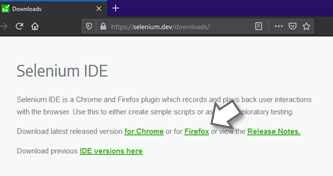
The first step is to download the Selenium IDE which – at the time of writing – is via the following URL:
Just click on the browser you are interested in (for these notes we are going to use Firefox, although Chrome is really not that different).
This should take you to the actual Add-on page.
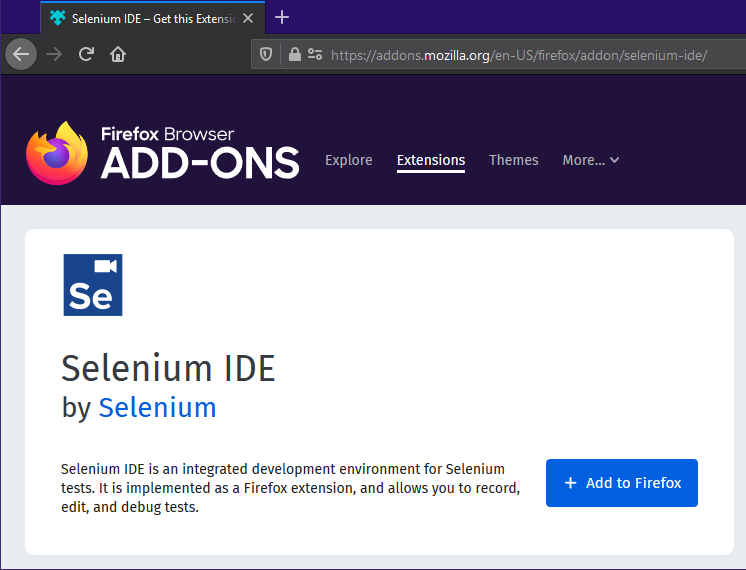
Clicking the Add to Firefox button will start installation.
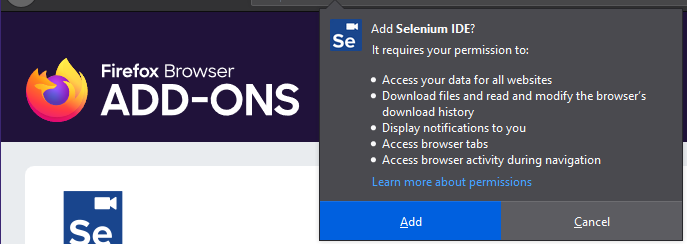
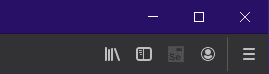
After accepting all the defaults, it will appear on your browser toolbar.
2. Record a script to create tests using the Selenium IDE
To record a test case:
Ensure you have browsed to the Application under Test (AUT) that you wish to record against.
For these notes we have our own website.
From the Firefox Tool bar, select the Selenium IDE icon.
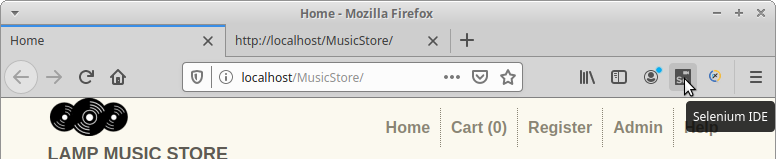
The Selenium IDE Application will start by displaying a menu:
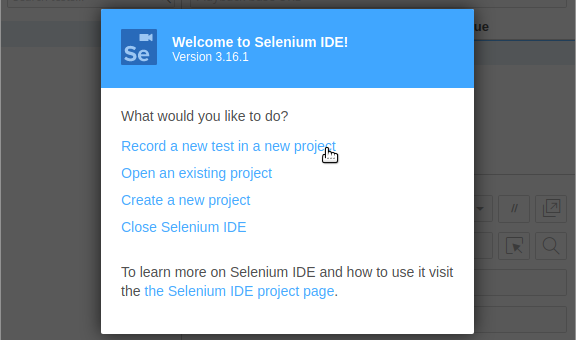
As we have never used it before, the above screen is selecting the first option.
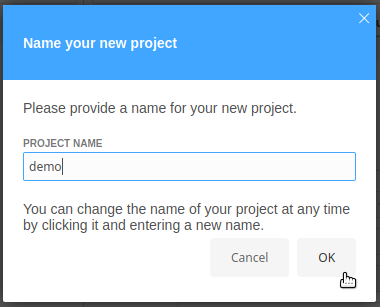
When creating a new project, it will ask for the name. For these notes we have used the imaginative name of demo.
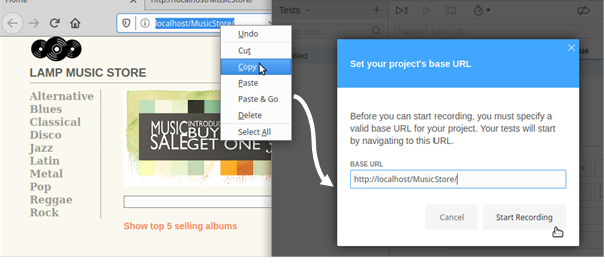
Selenium will then open a new browser window which you use to record your steps for your test.
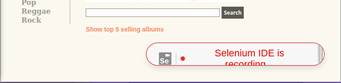
From this point forward the IDE monitors all mouse interactions and keyboard inputs and records them in the Selenium IDE interface. Until you stop the recorder.
Selenium IDE does have a habit of placing the web page in a window in front of the Selenium IDE and will record the action of moving it in your script.
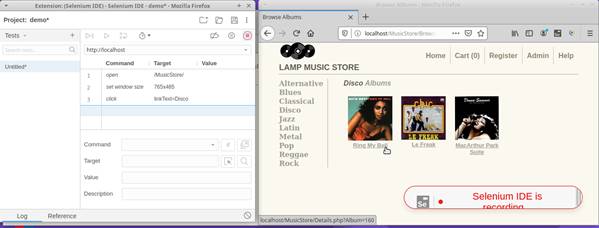
The Selenium IDE table tab will then display all actions captured by the recorder. It is possible to view, modify or delete commands from this view. To delete a command, right click on the command and select delete from the menu.
When all recorded steps are complete, stop the recorder by clicking on the red circle.

To save your test, you will need to save the entire project, click on the Save project button in the top right-hand corner of the IDE screen.

3. Replay the script in the Selenium IDE
Once all the required test steps have been captured, you can now replay the test by clicking on the Run current test icon.

If you have closed the window Selenium used to record the test, the IDE will now open it again.
On successful execution of the test the captured tests steps will turn green:
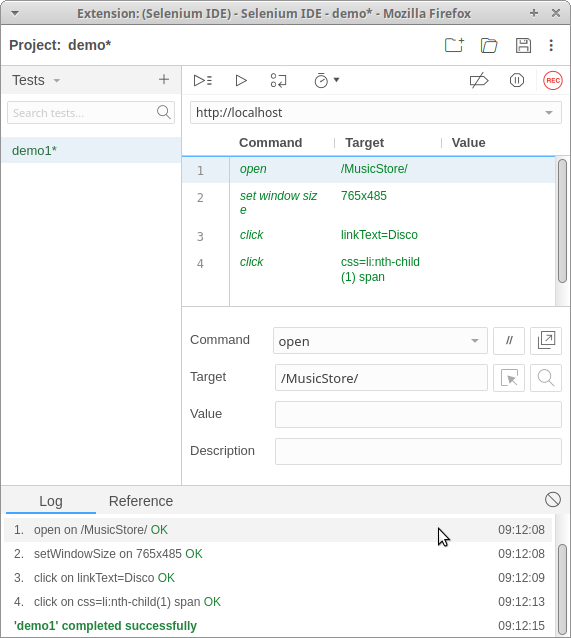
Should the test fail, the failed line (usually highlighted in red) and the failure count on the left-hand side will increment by one.
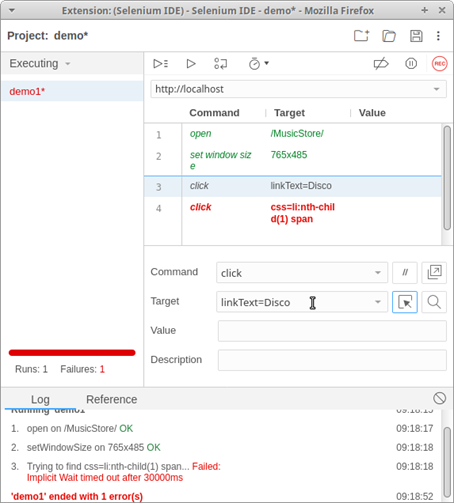
Any errors also appear in the log tab at the bottom of the Selenium IDE interface.
Inserting Commands
When using Selenium IDE as an automated test tool it is inevitable that you are going to need to modify the recorded steps to include an additional step e.g. an extra click, some synchronisation or an Assertion (A method of passing or failing a test).
To insert a new command:
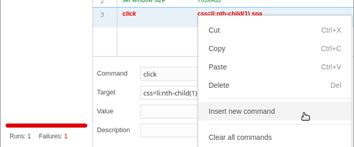
Initially the new command will appear in the script as a blank line.
Structure of a line in the test case
Each command requires up to three inputs:
- Command
- Target
- Value
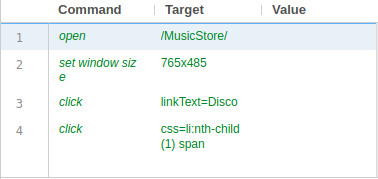
To insert a new command:
Command is the action the Selenium Script is to perform. Commands range in functionality from Navigation e.g. Click a Button, Synchronisation e.g. Wait for text to appear on the screen and Assertions e.g. ensure the correct text has appeared on the screen.
To select a command, click on the black arrow to expand the drop-down list of available commands.
Target
Value
The value is an optional field used when the command needs some additional information. For example, if you want to type in a text box, then this field would contain the text you wished to type.
4. Replay all tests in the Selenium IDE
If the Selenium IDE project has more than one test, we can run them all sequentially.
In the screenshot below, we have a couple of tests sitting in the IDE…
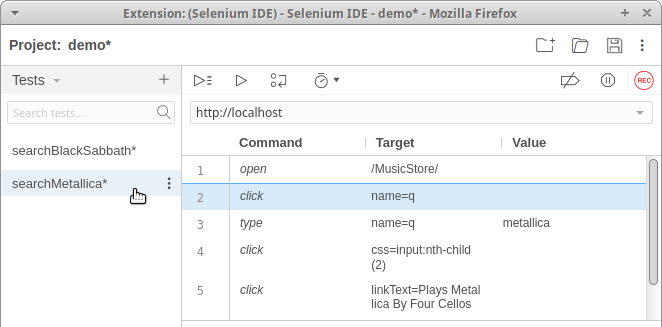
To execute all tests in the test suite, select the Run all tests button:

The test cases show up as green when the tests have executed successfully:
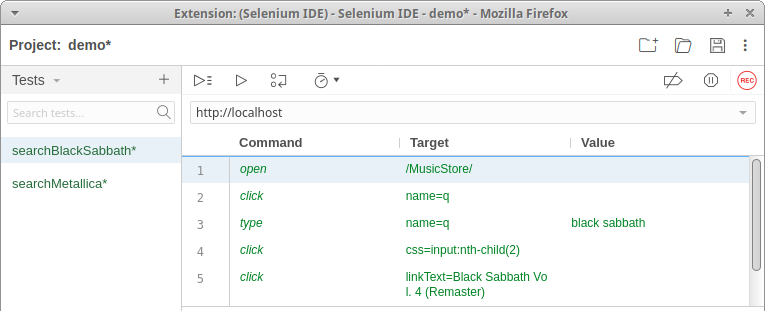
5. Export the tests from Selenium IDE
The Selenium IDE enables recorded test cases to be exported to a range of programming languages and their respective testing frameworks.
To do this:
Either right-click on the test name or hover the mouse near the end of the test name field until three dots appear.
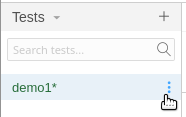
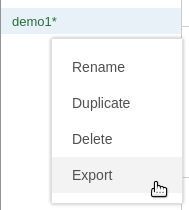
Click on this and select export.
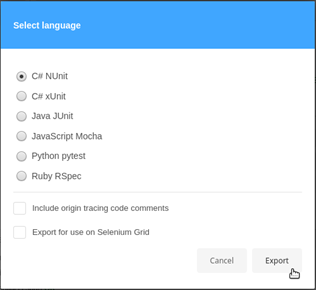
Selenium will then prompt you to select the language (in this example we have selected C# NUnit).
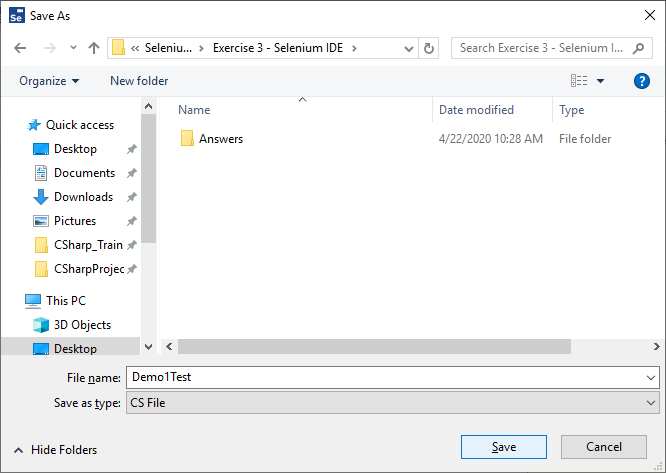
Give a filename and save it in the desired location.
The choice of programming language and test framework would be either be a personal preference or an organisational norm and would depend on tools and skills of the tester or developers available.
6. Running Selenium IDE test cases from the command line
Once you add the test cases into a Selenium IDE test suite, it is possible to execute them from the command line.
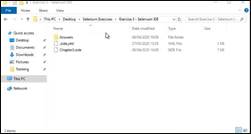
Open a new instance of File Manager (“Win + E”).
Navigate to the folder where you saved your project (the file with the extension “side”).
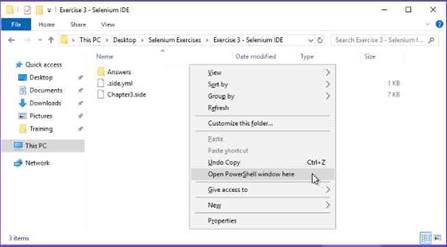
Hold down Control & Shift and then Right click the mouse and select Open PowerShell window Here:
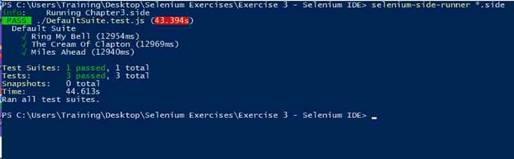
Run the tests from the command line
In the terminal window, type in the following:
selenium-side-runner *.side
To exit out of the terminal window, type in exit.
Want to find out more?
Want find out more about setting up the Selenium IDE, exporting test cases to other languages and running them as actual code?
Well, at the Expleo Academy we deliver courses on Selenium and many other subjects. Feel free to visit the Academy website.
- If you are interested in learning all about how to use Selenium with Java then feel free to have a look at out Using Selenium with Workshop course.
- If you are interested in learning all about how to use Selenium with Cucumber then feel free to have a look at out Using Selenium with Cucumber course.
More information on the Selenium IDE can be found at the following location:
https://selenium.dev/selenium-ide/docs/en/introduction/getting-started
John Kurowski has been delivering training for over 10 years specialising in Automation, Agile and ISTQB. John also develops the courseware and creates virtual machines in AWS for automation courses.
John has been working in IT for over 30 years and has also been a tester, test manager, developer, development manager, project manager, support consultant (the list goes on…)